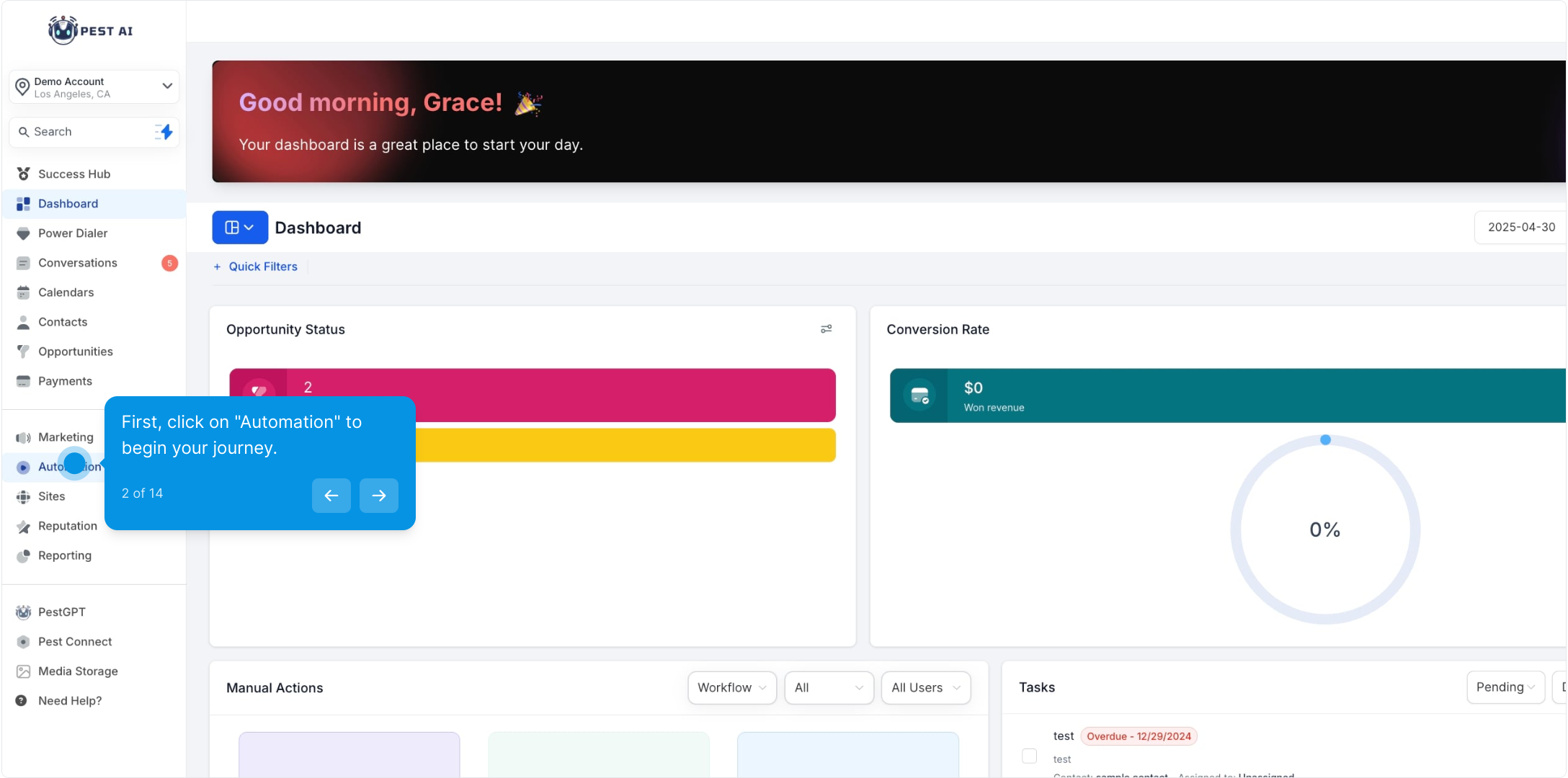
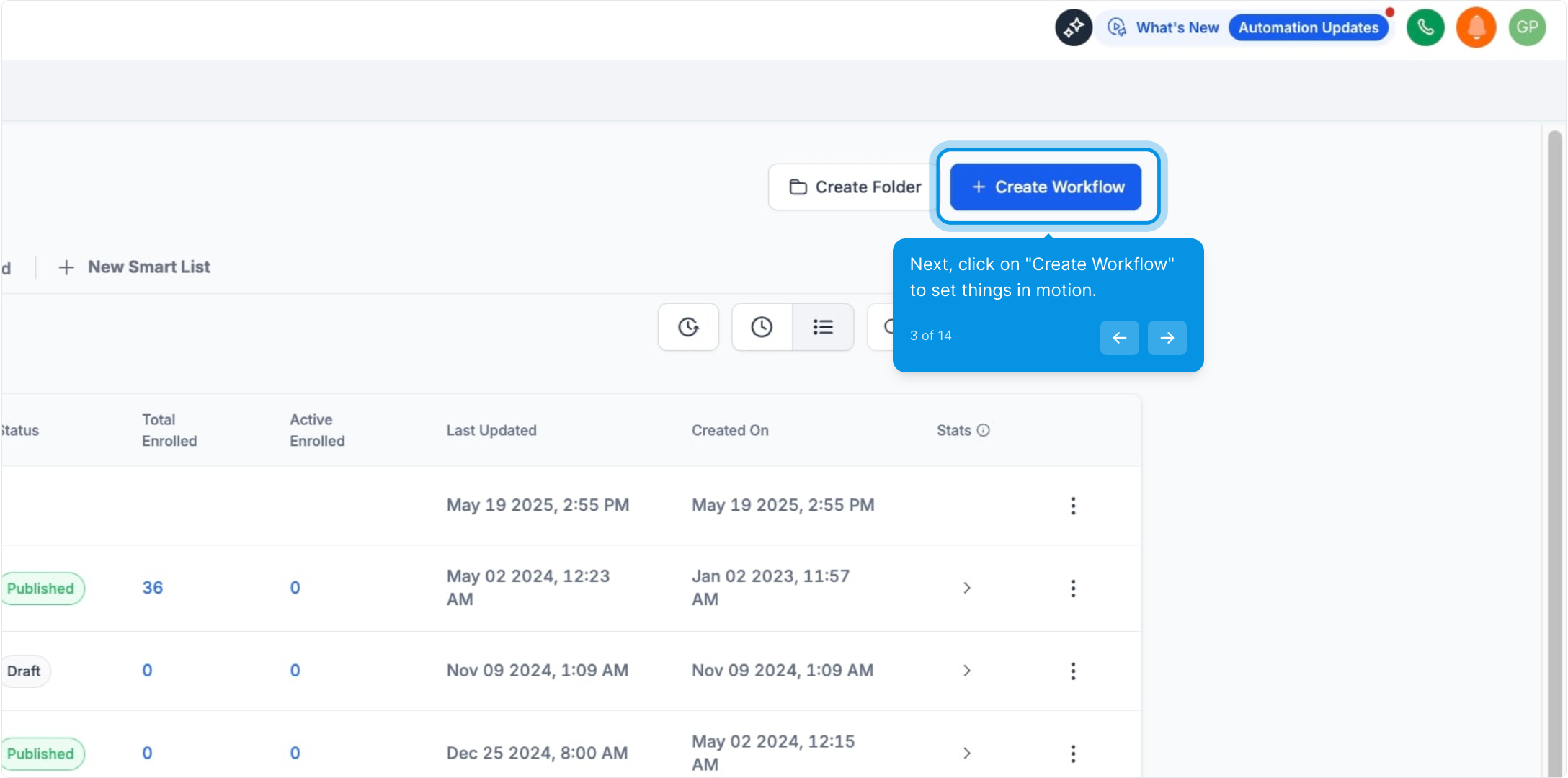
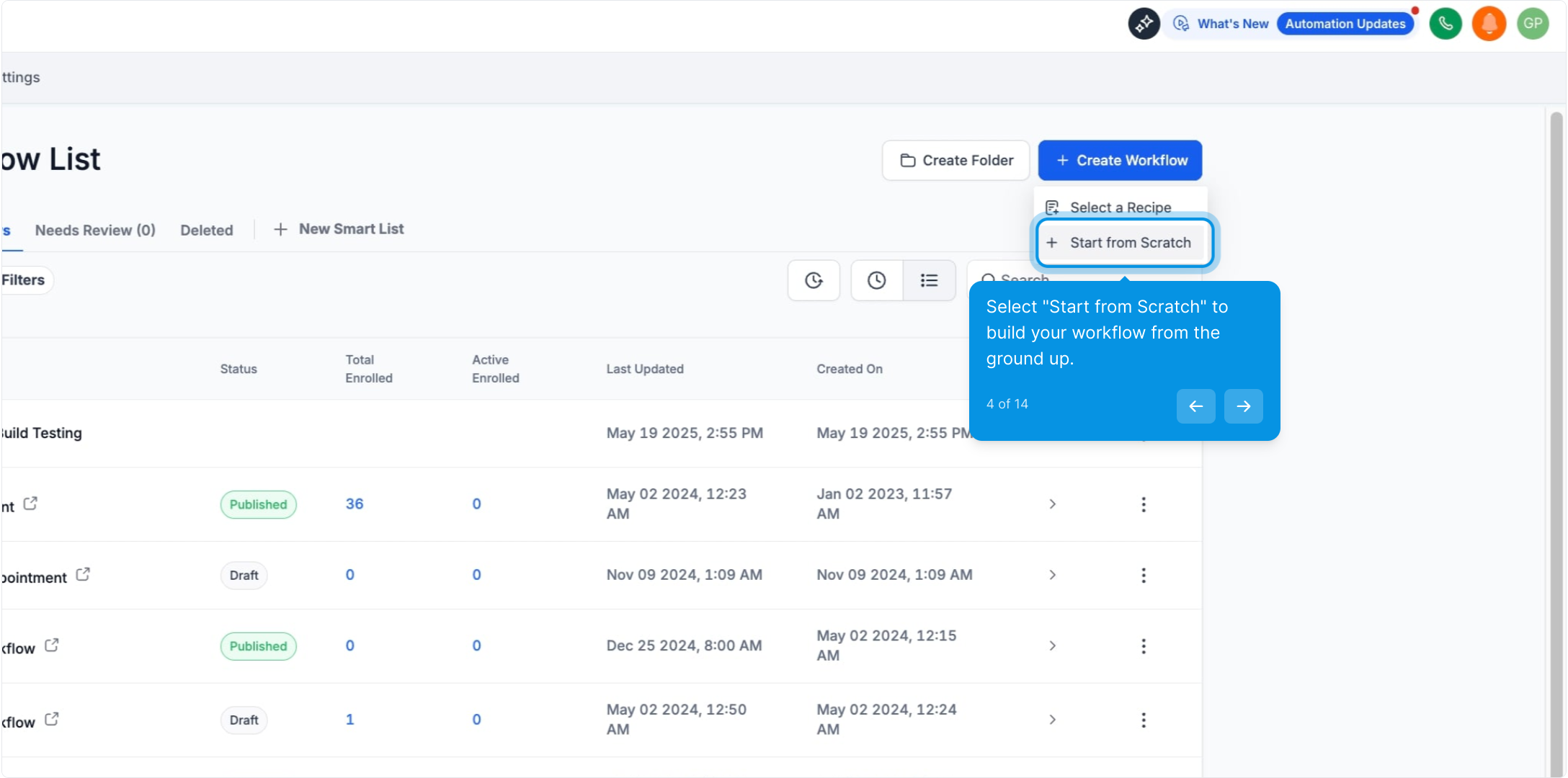
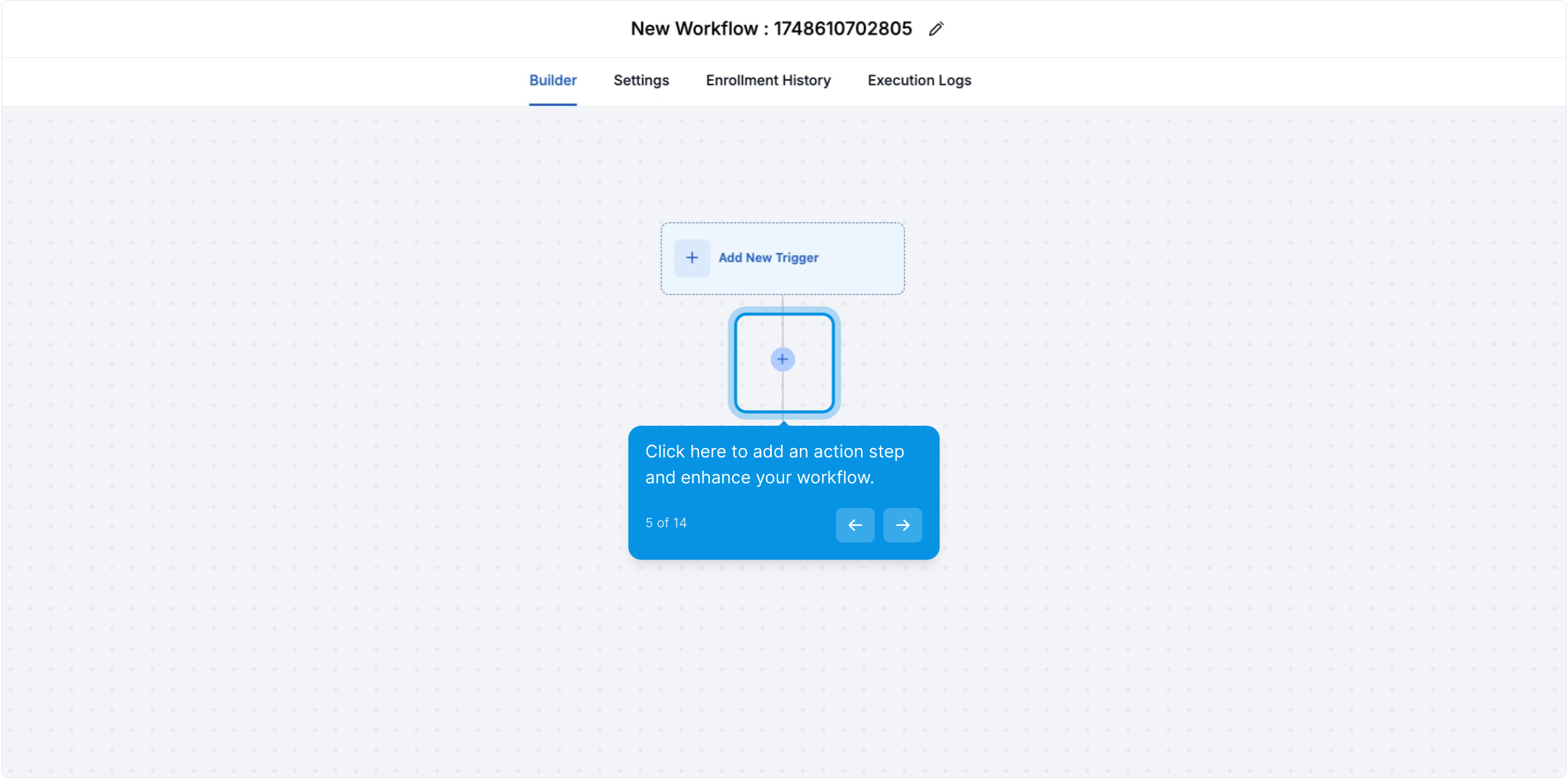
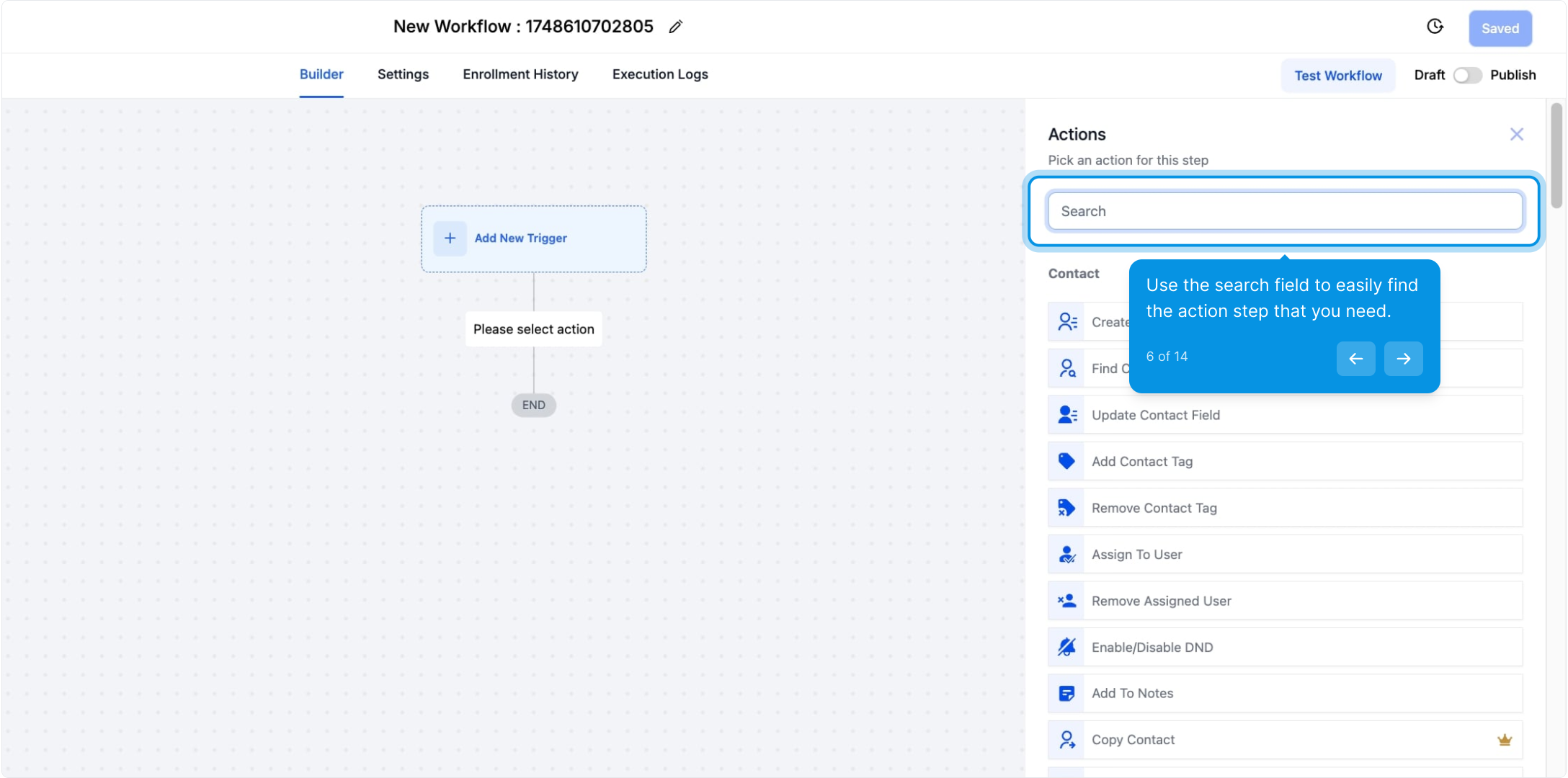
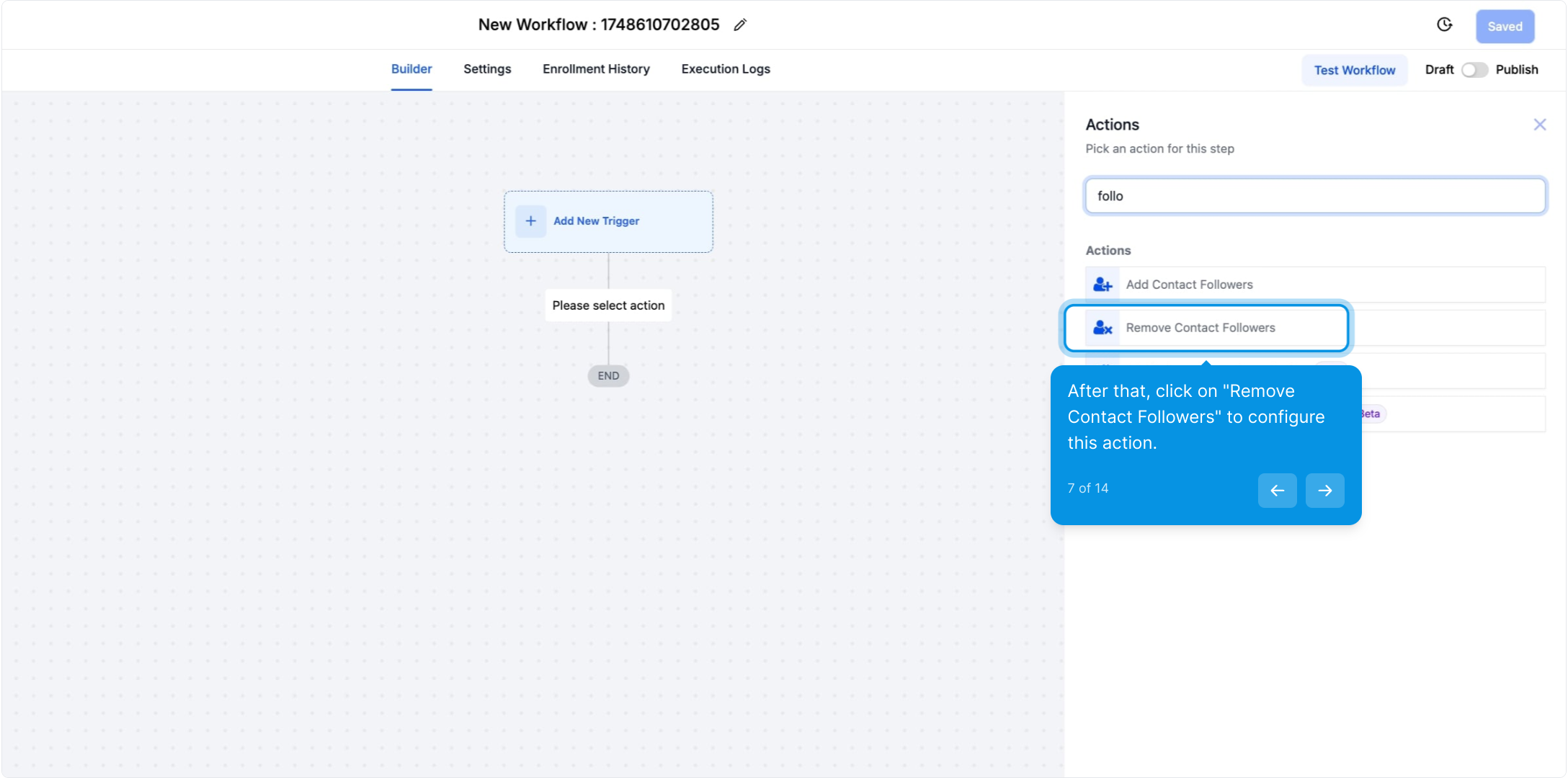
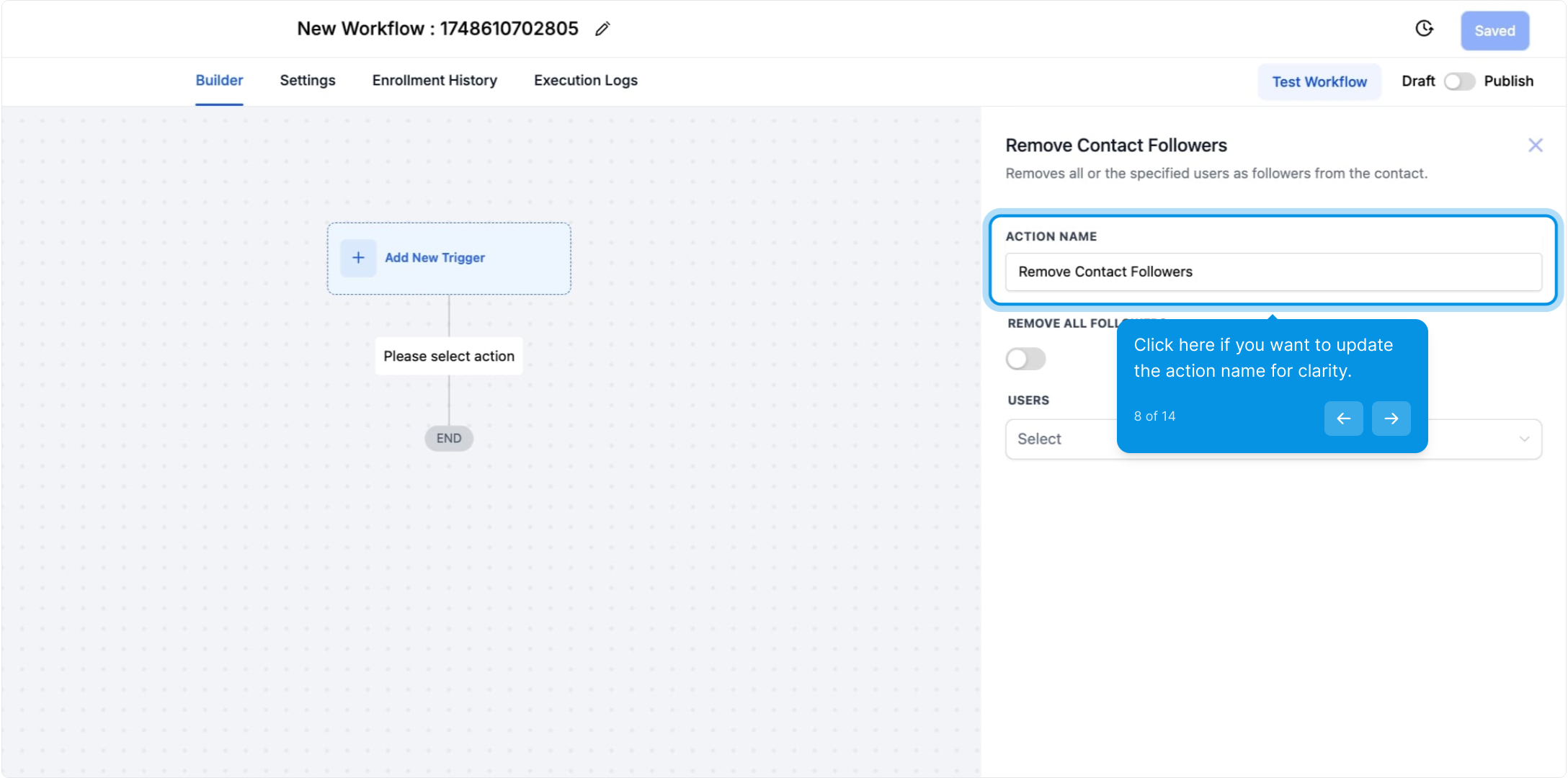
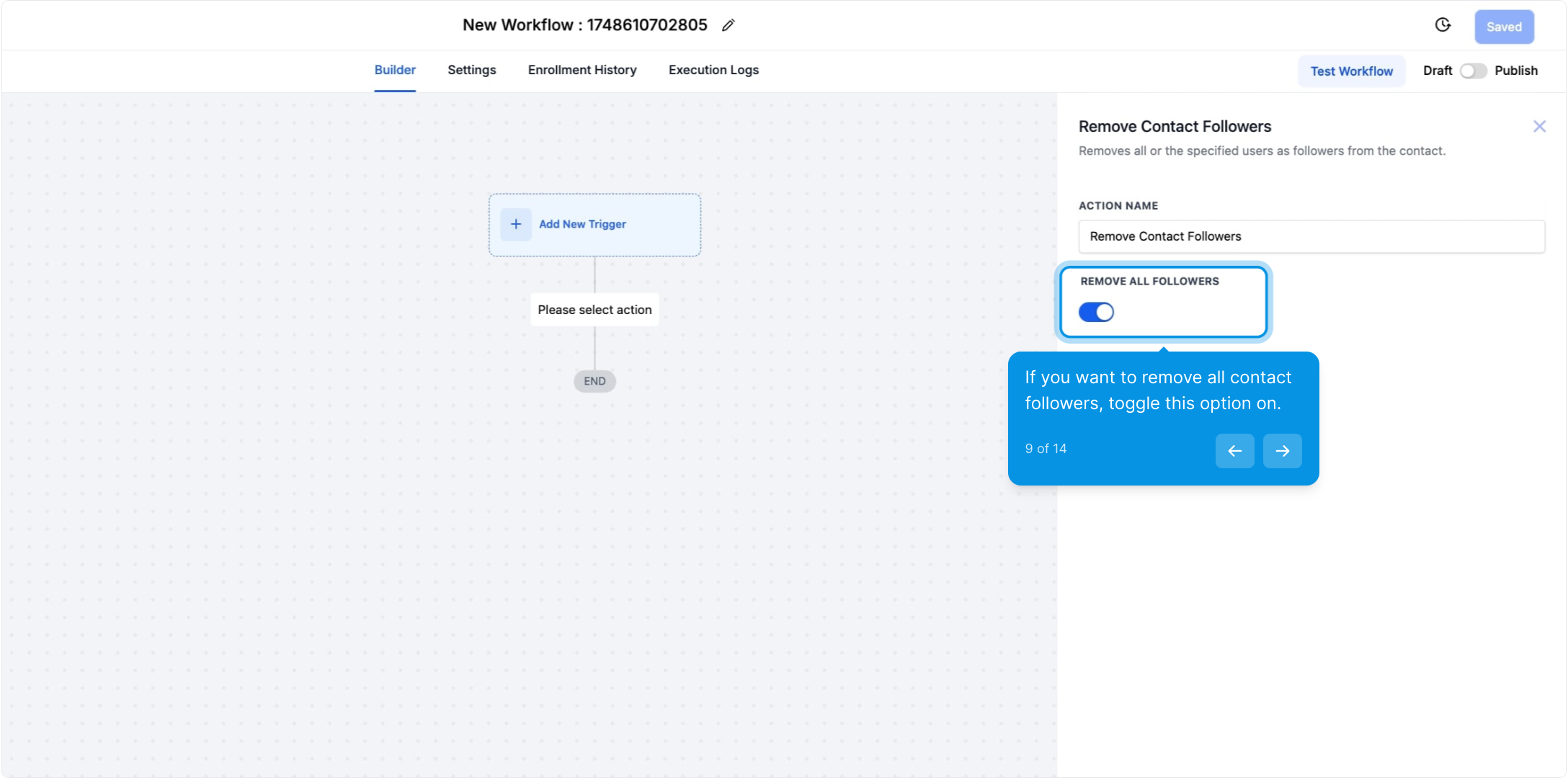
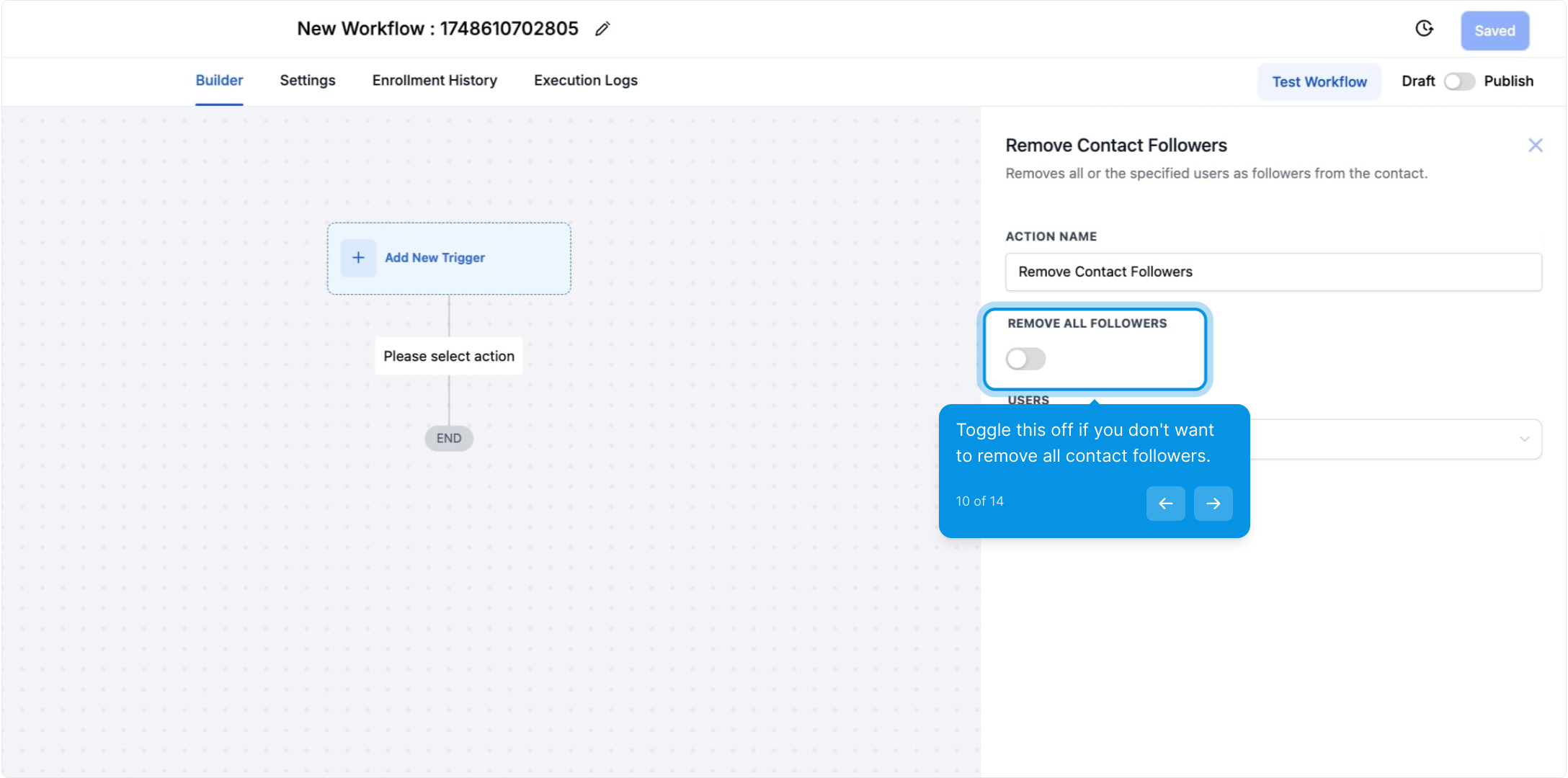
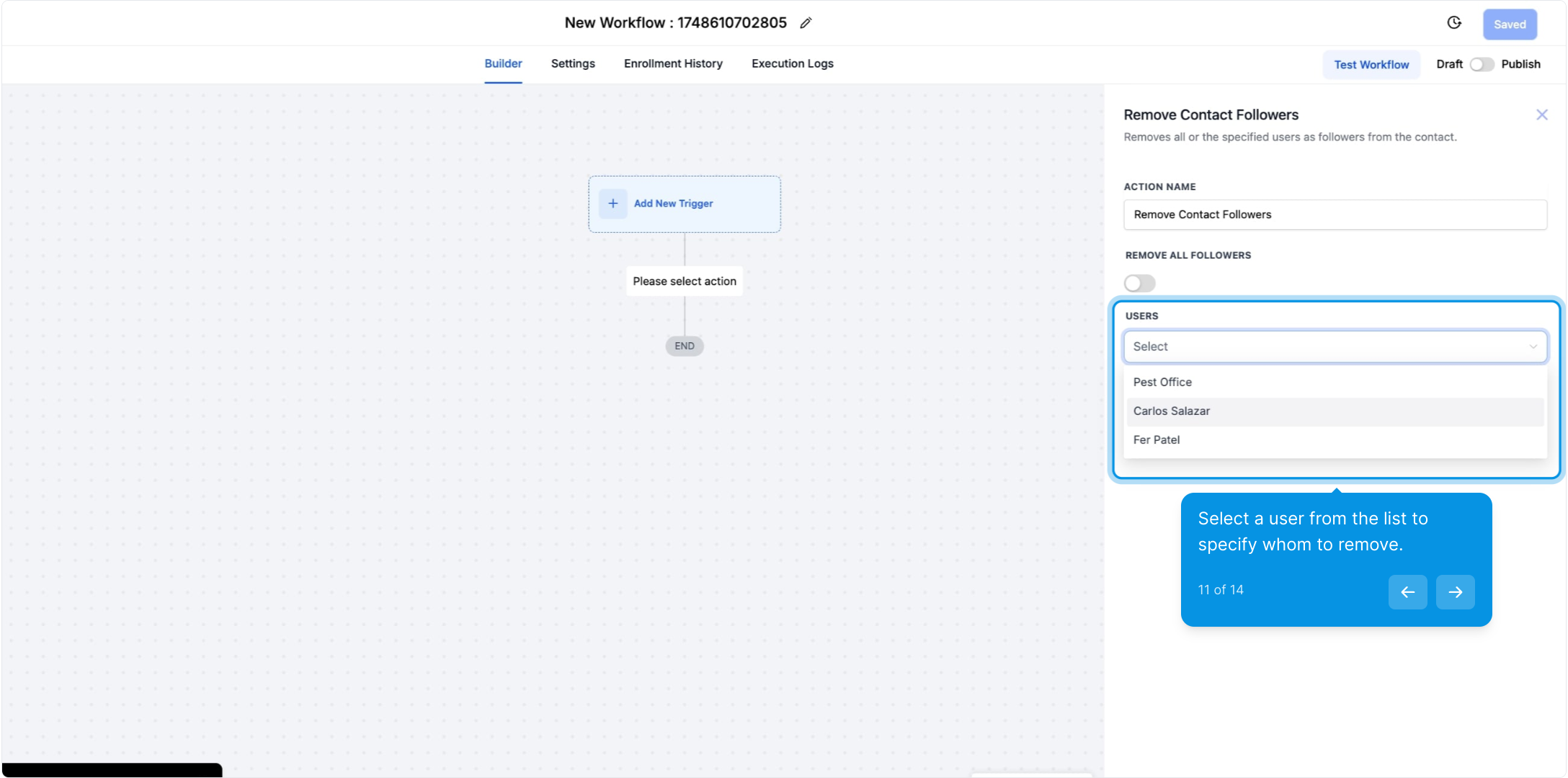
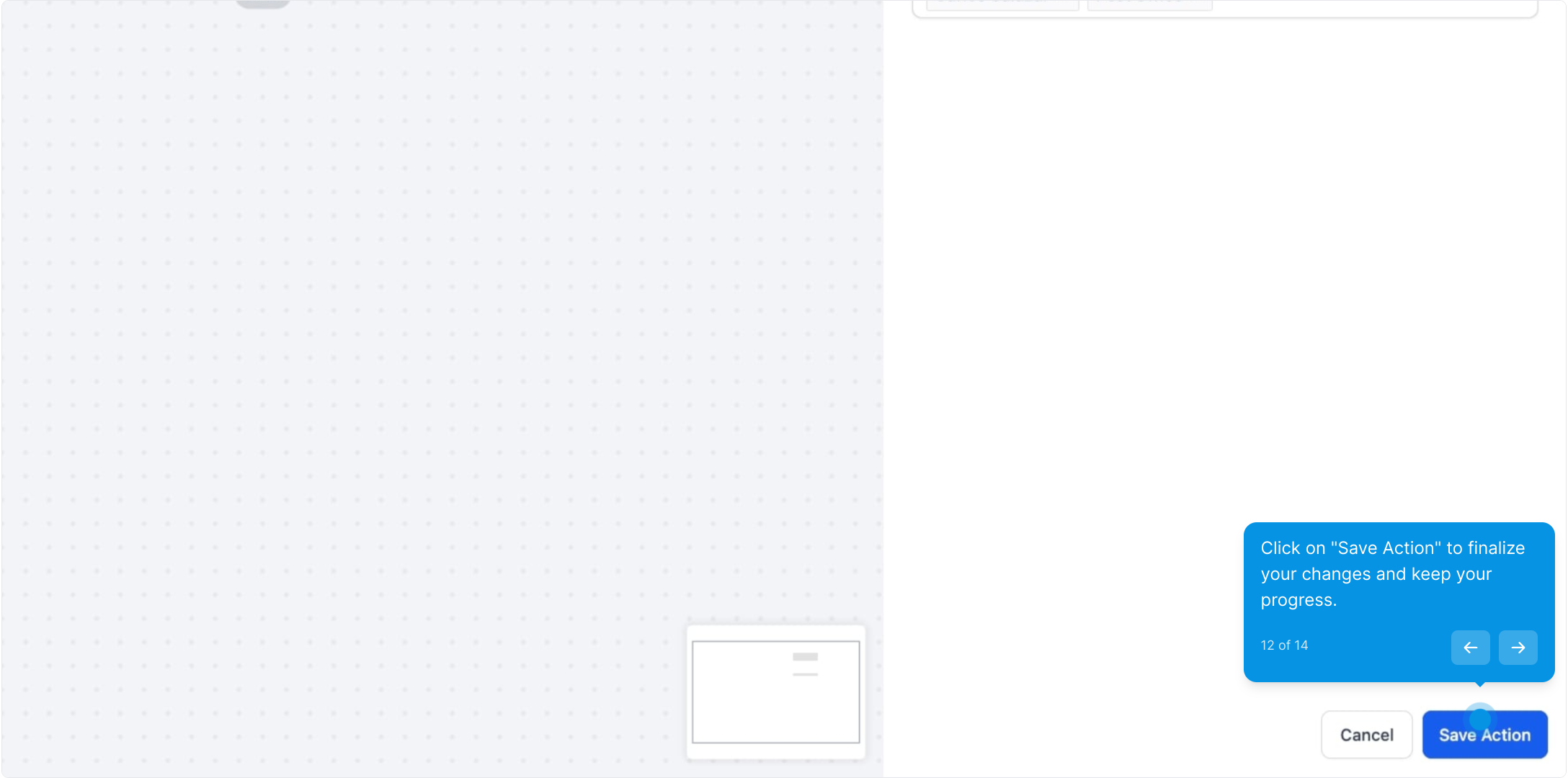
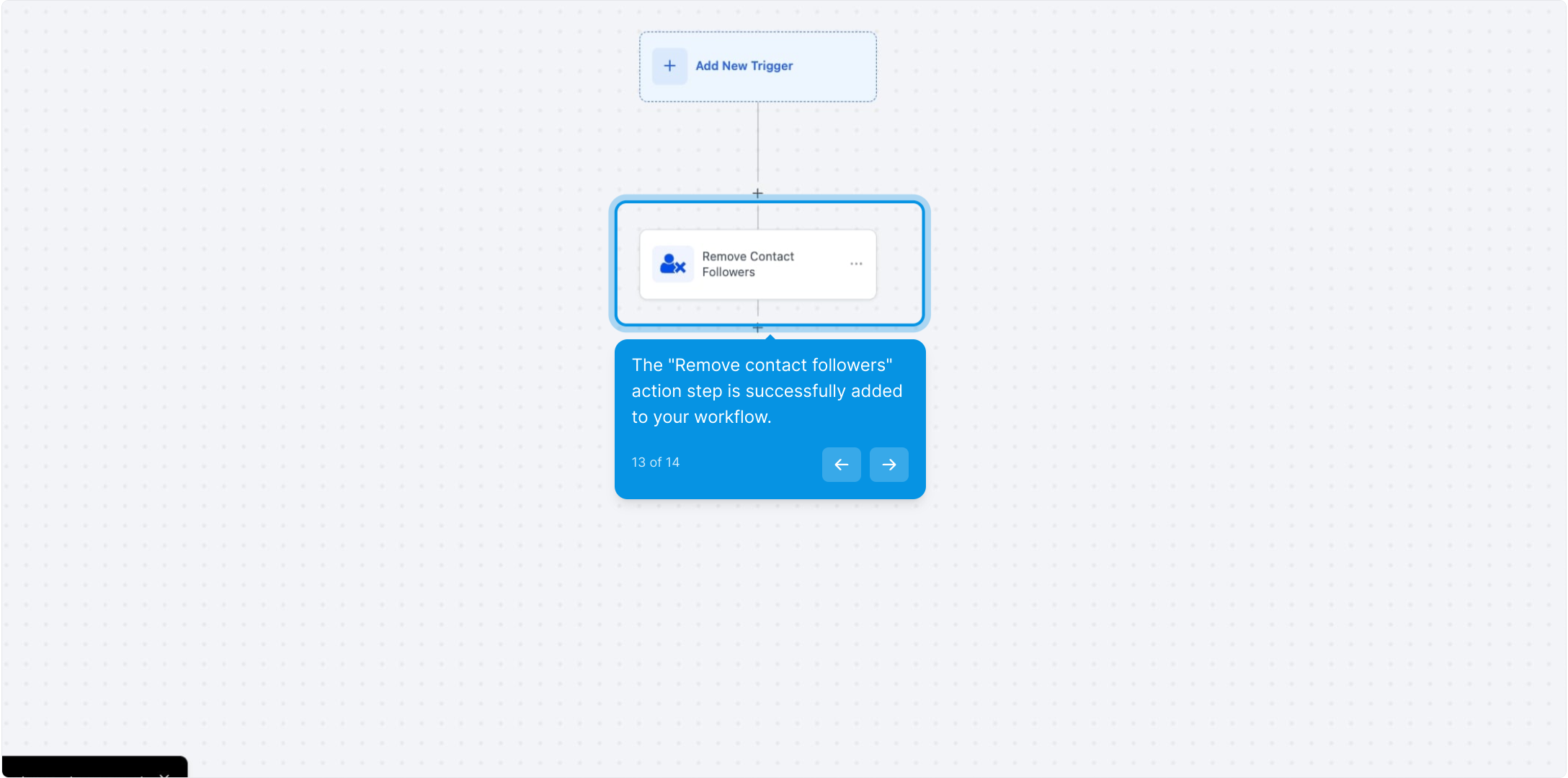
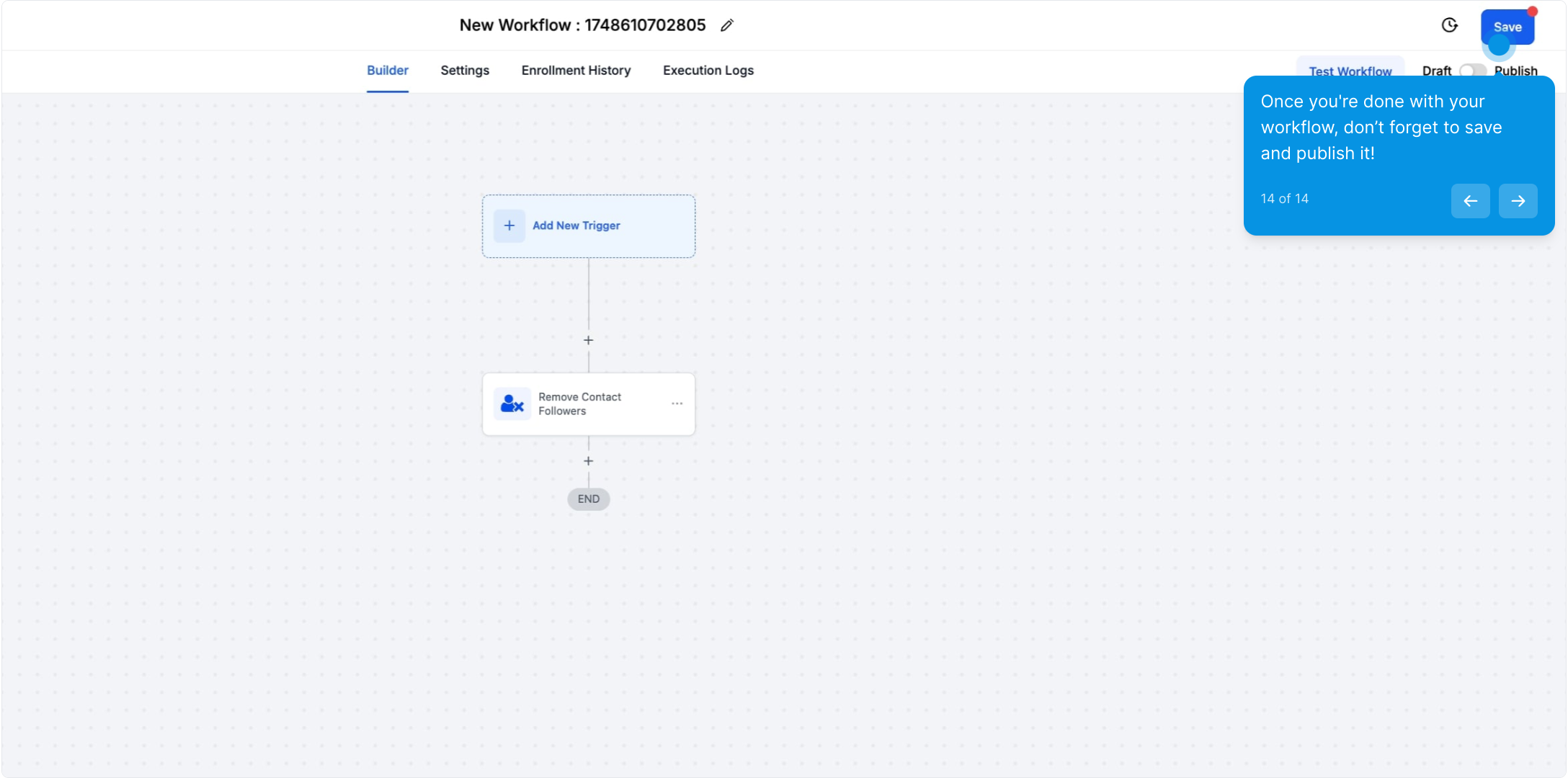
Monitor and Review: Keep an eye on the workflow execution and check the results to ensure followers have been successfully removed.
Can I automate the removal of followers from multiple contact profiles at once?
Yes, you can configure the workflow to handle multiple contacts if your automation platform supports batch processing or multiple target profiles.
How do I know if the followers have been removed successfully?
Monitor the workflow execution results and review the contact profiles to verify that the followers have been successfully removed.
Can I customize the criteria for removing followers?
Yes, you can use a combination of Workflow triggers and other Workflow actions before you remove a follower to ensure they are only remove when you intend them to.
Is it possible to undo the removal of followers once the workflow has been executed?
Typically, the removal action is permanent. Ensure that you review the contact profiles before executing the workflow to avoid unintended changes.