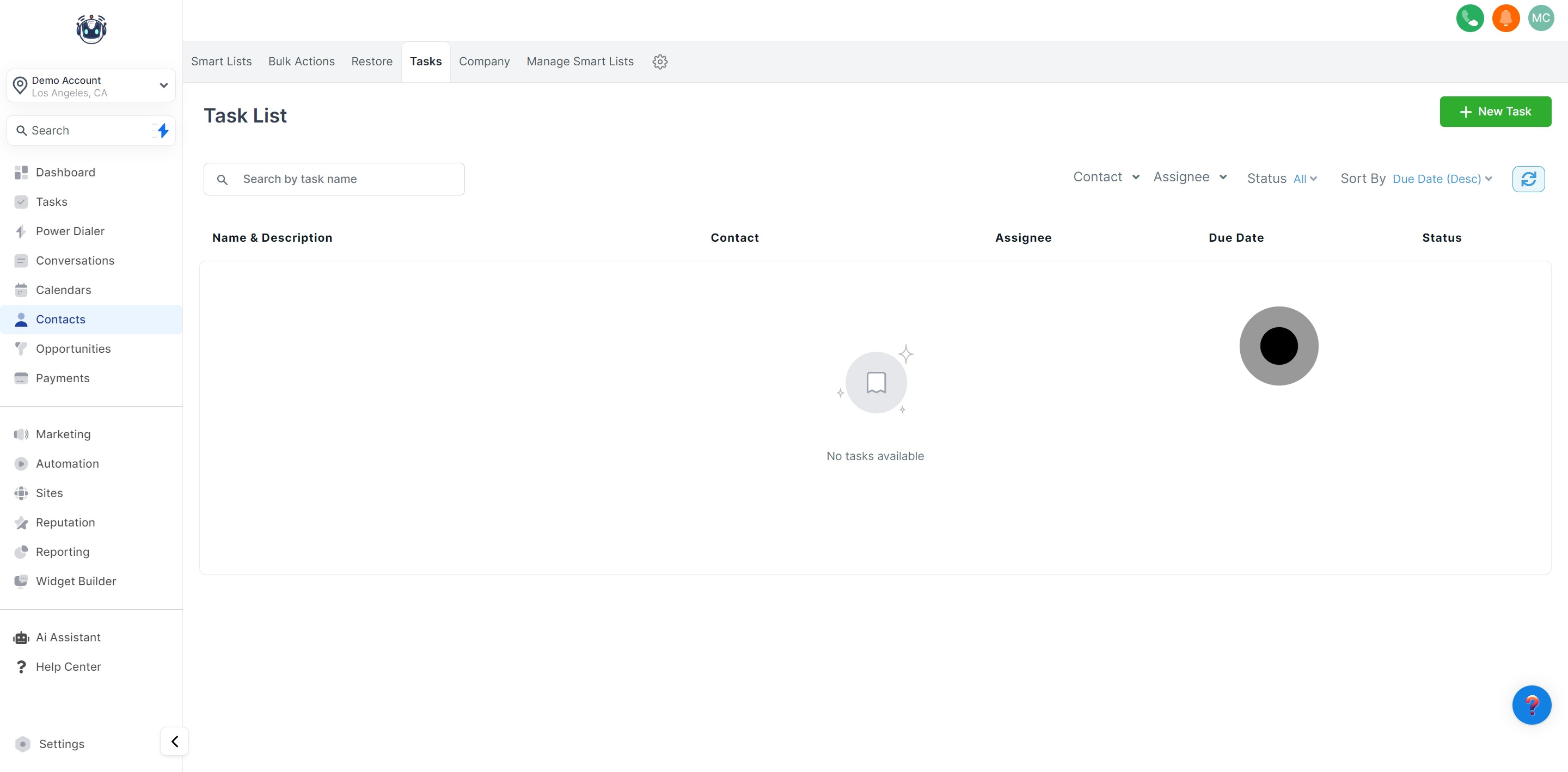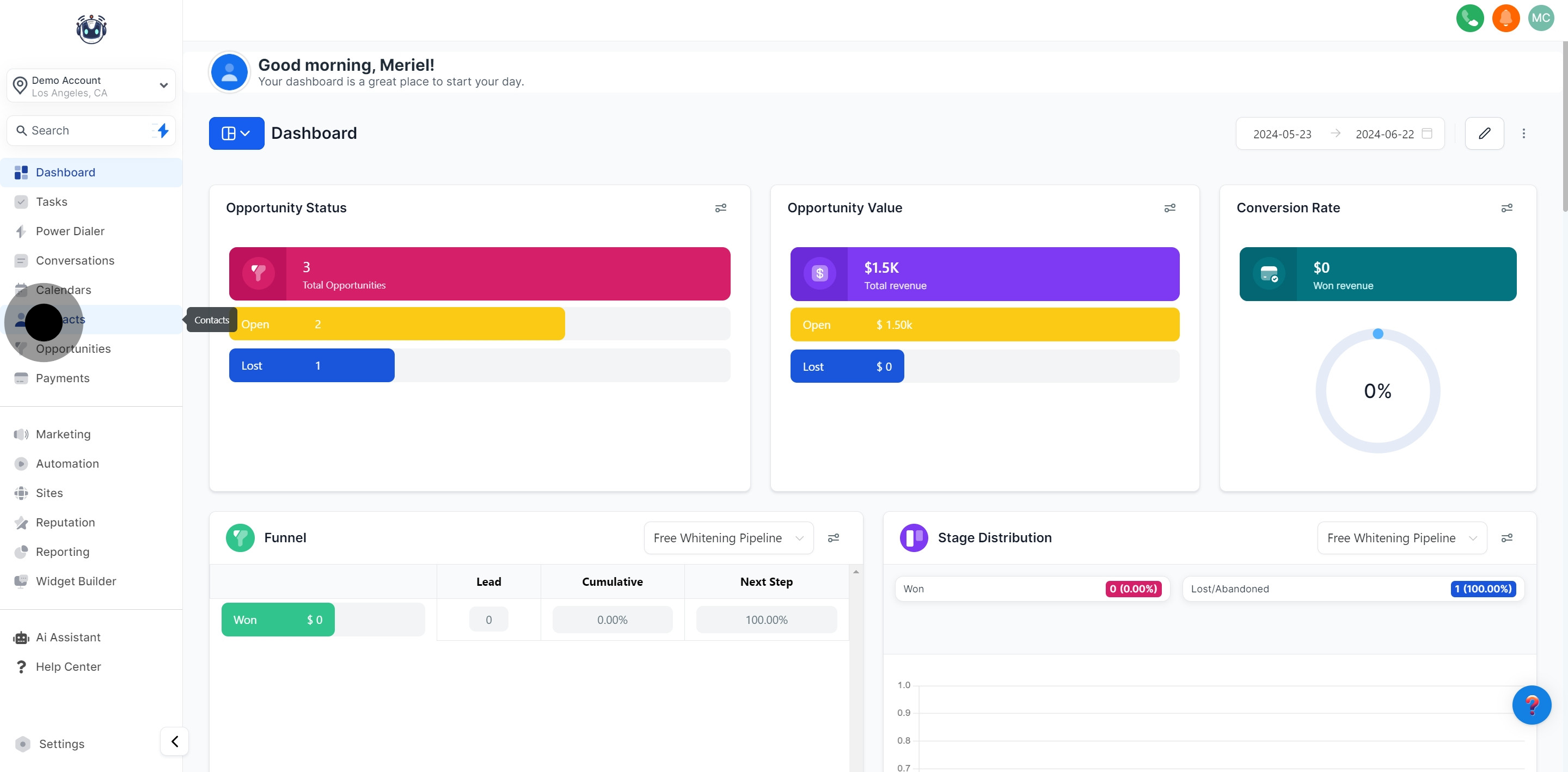
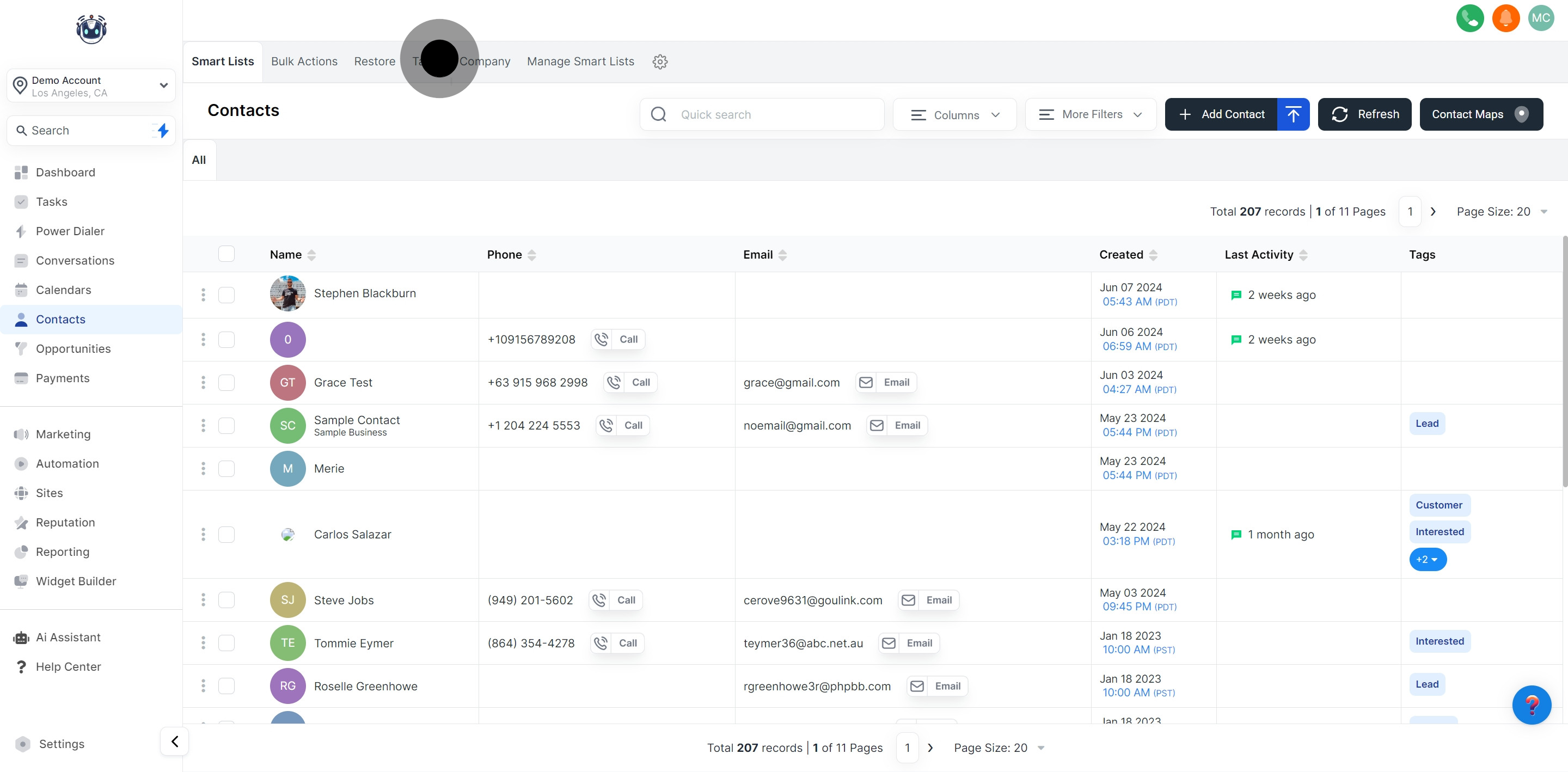
Tasks play a crucial role in maintaining organization and overseeing key business activities by consolidating them into a single section of your CRM. This area encompasses various tasks assigned to team members and contacts, ensuring thorough tracking and effective management to enhance efficiency and productivity.
NOTE: Your access to all features may vary based on your user permissions.
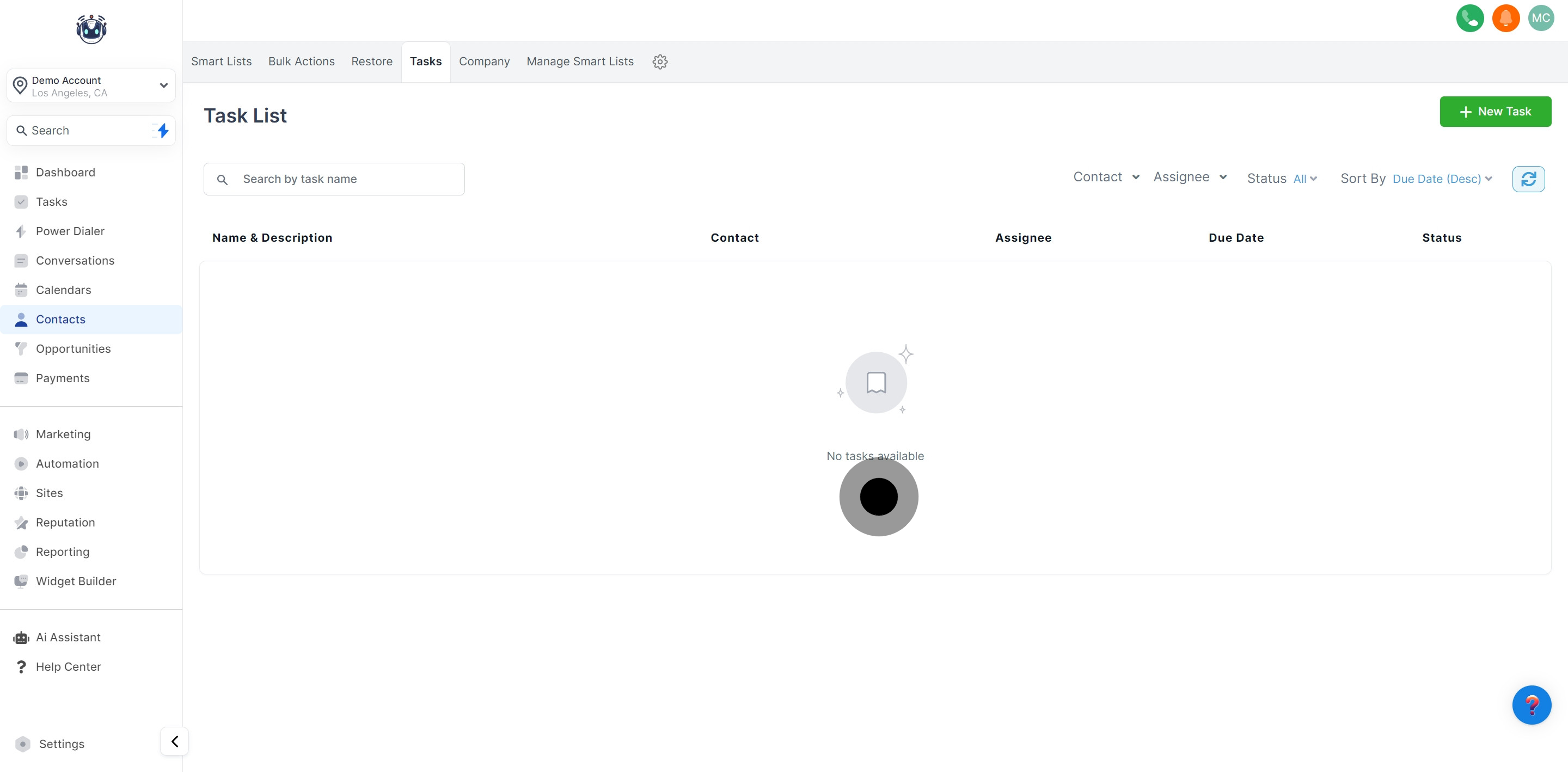
This section of your task overview displays the name and description of each task. Clicking on a task provides a detailed view, redirecting you to the contacts section for more information related to that task.
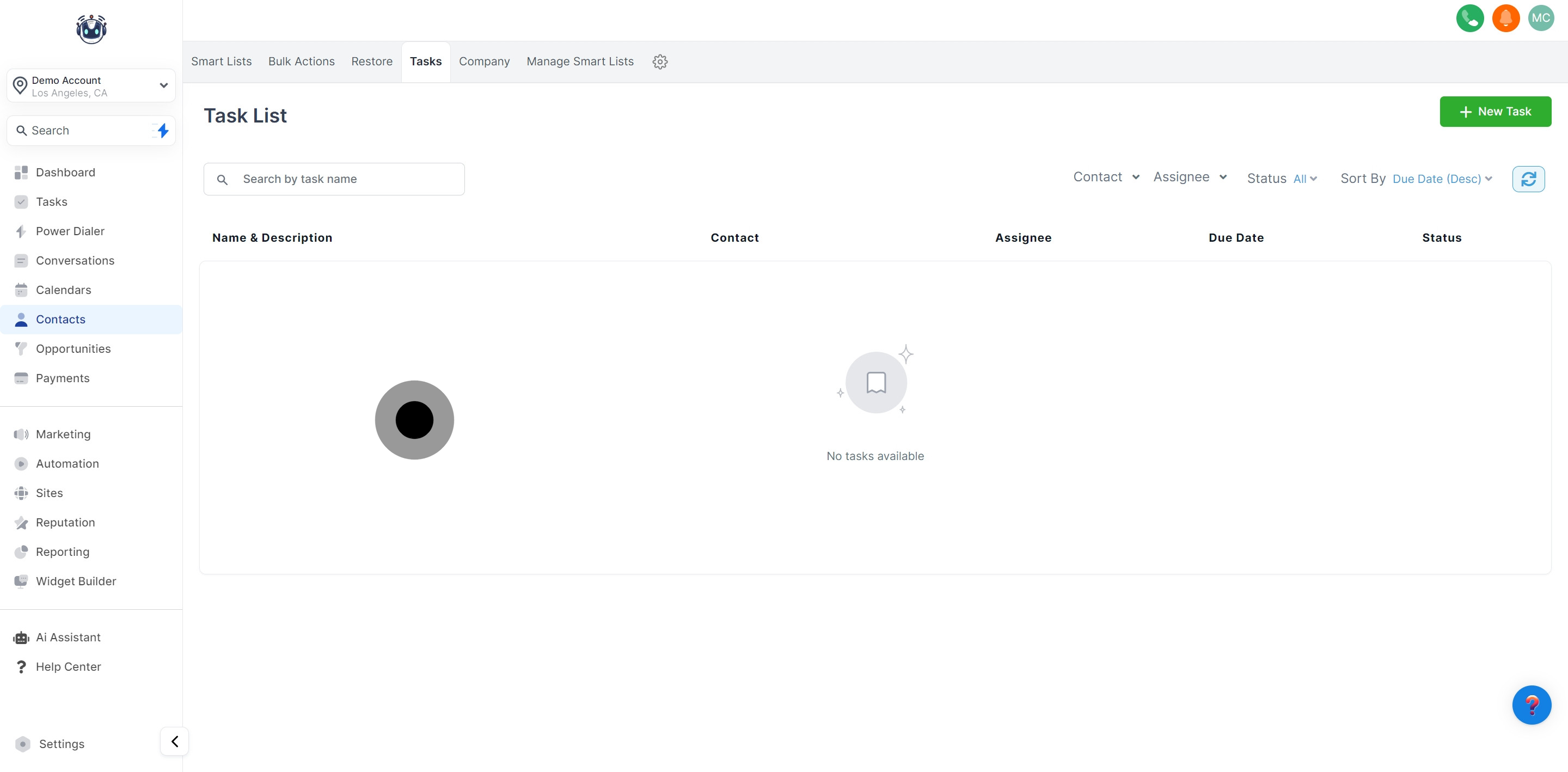
Here, you can view the contact associated with each task, indicating the individual assigned to it. This feature simplifies referencing and managing tasks based on their associated contacts.
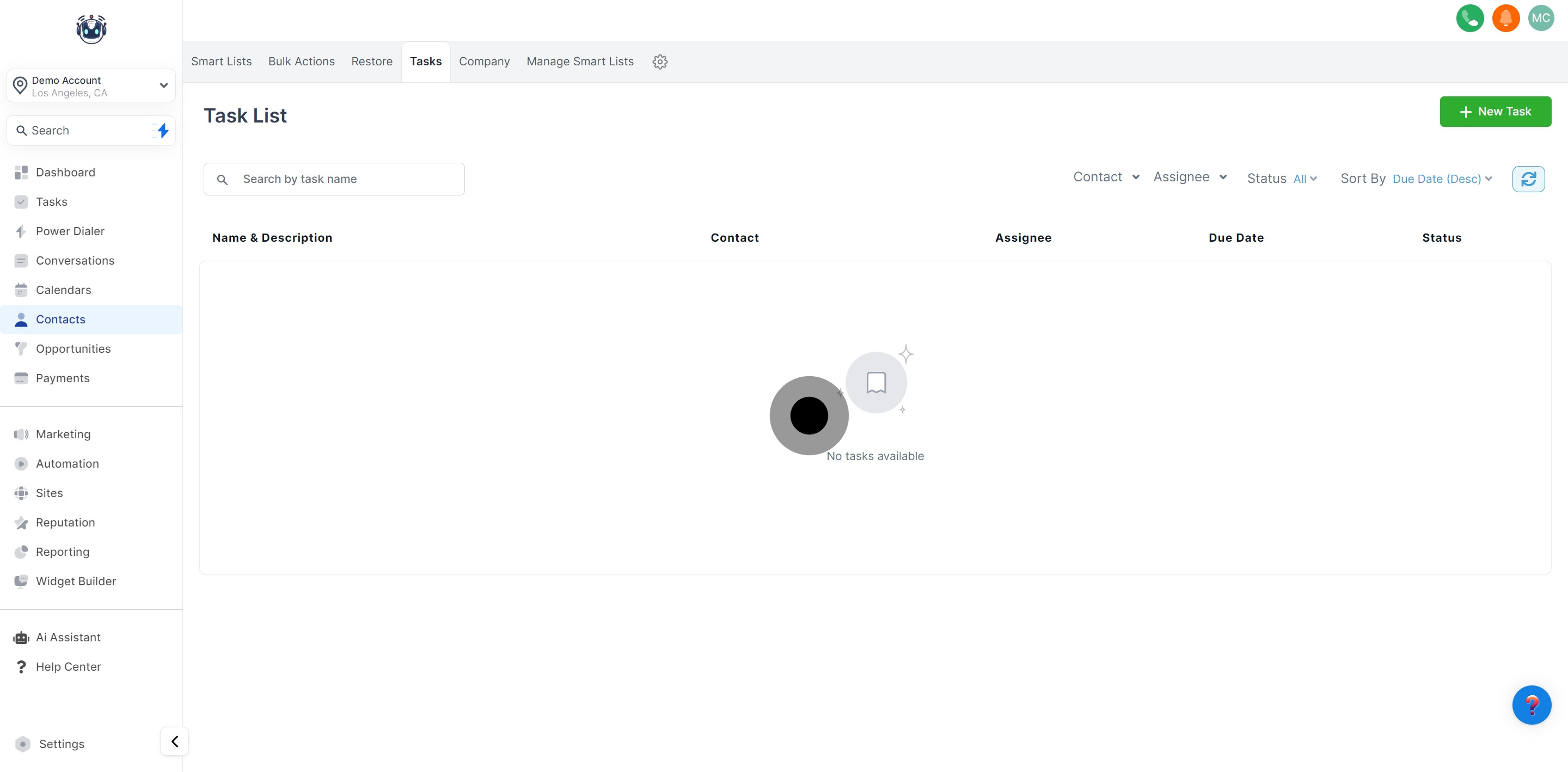
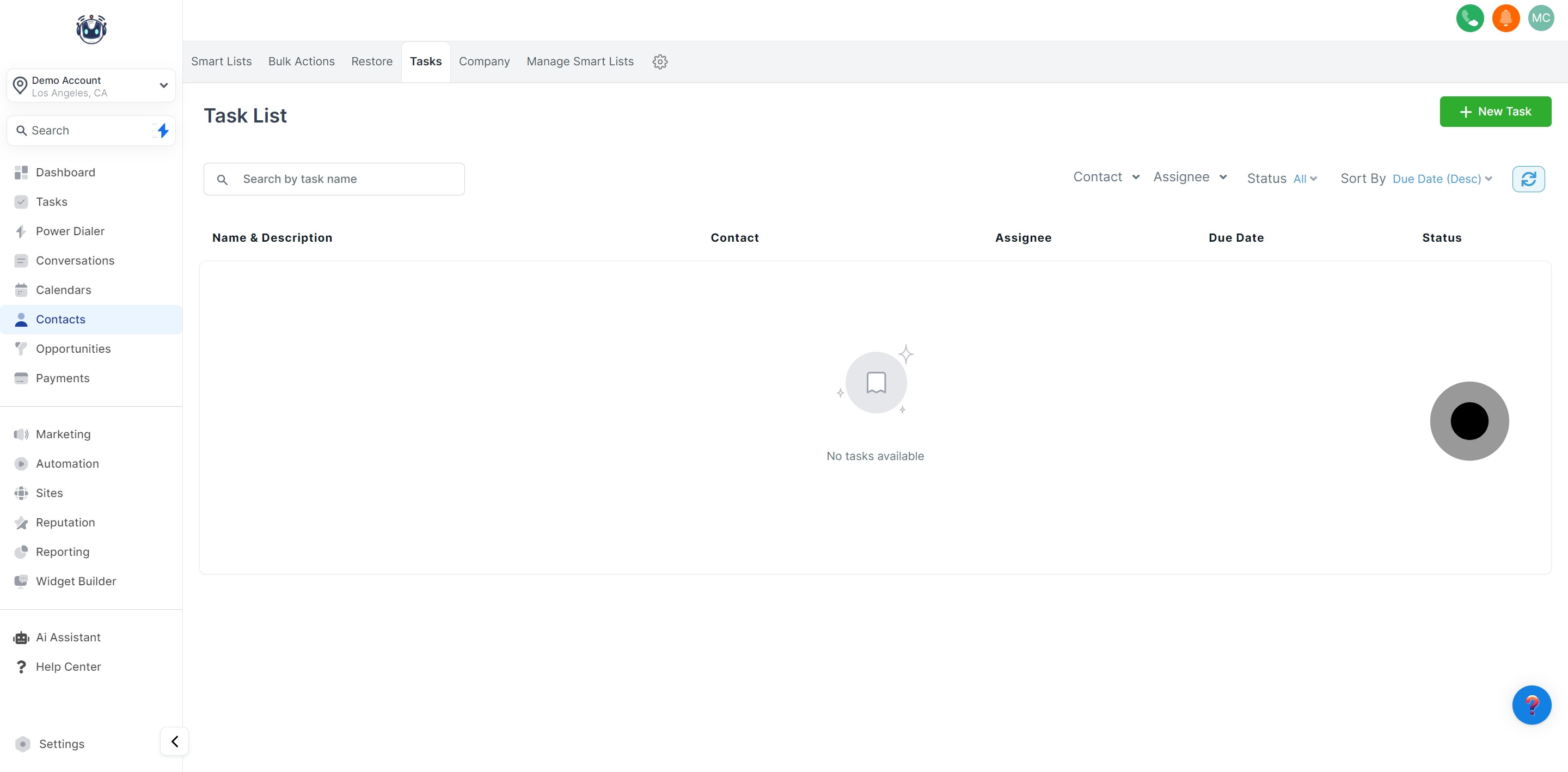
This column indicates the team member assigned to each task, offering clarity on task distribution within your team. It aids in efficient organization and management of tasks.
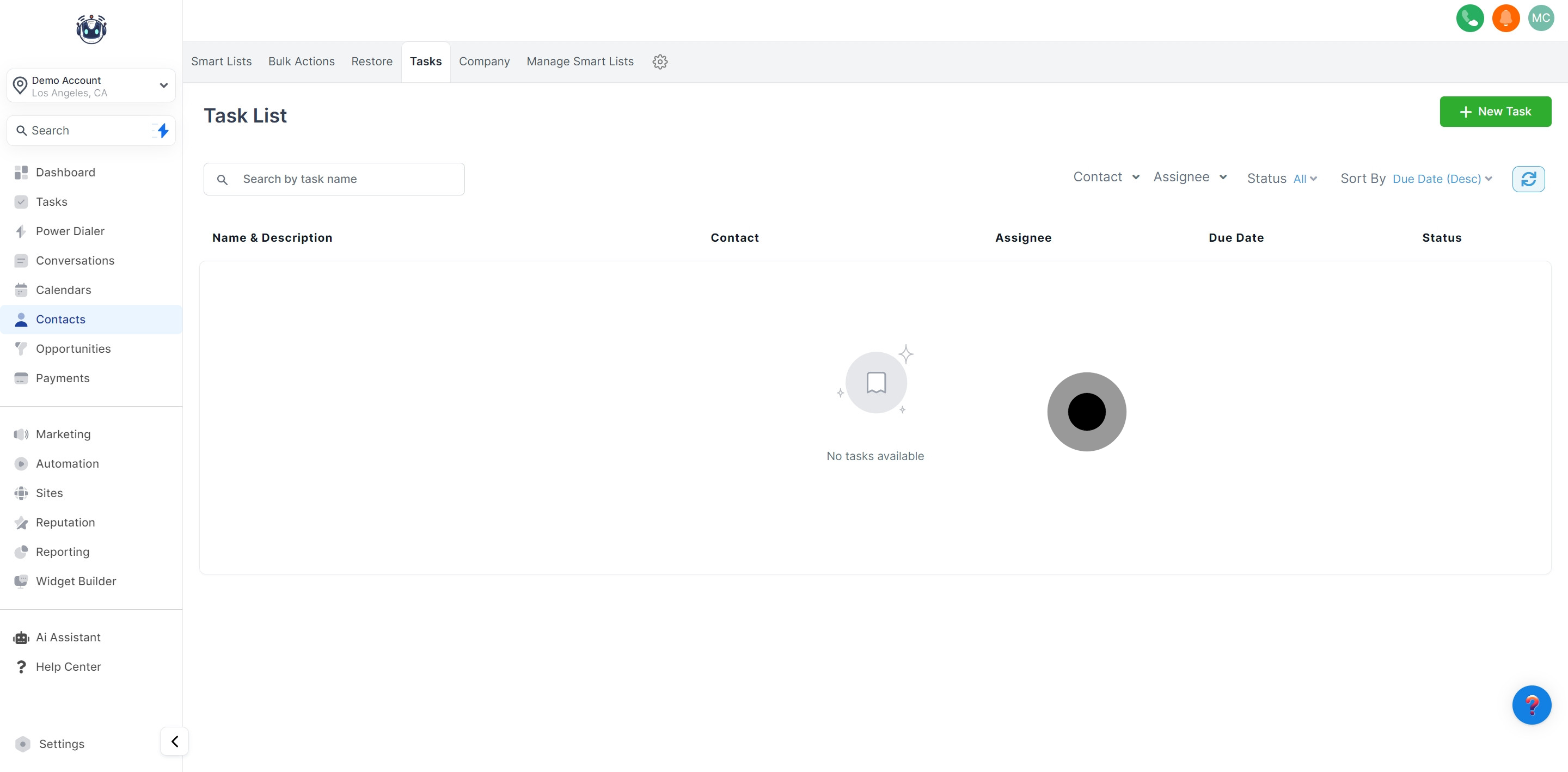
The due date column shows the deadline for each task, providing clear visibility into task timelines to ensure timely completion and maintain an organized workflow.